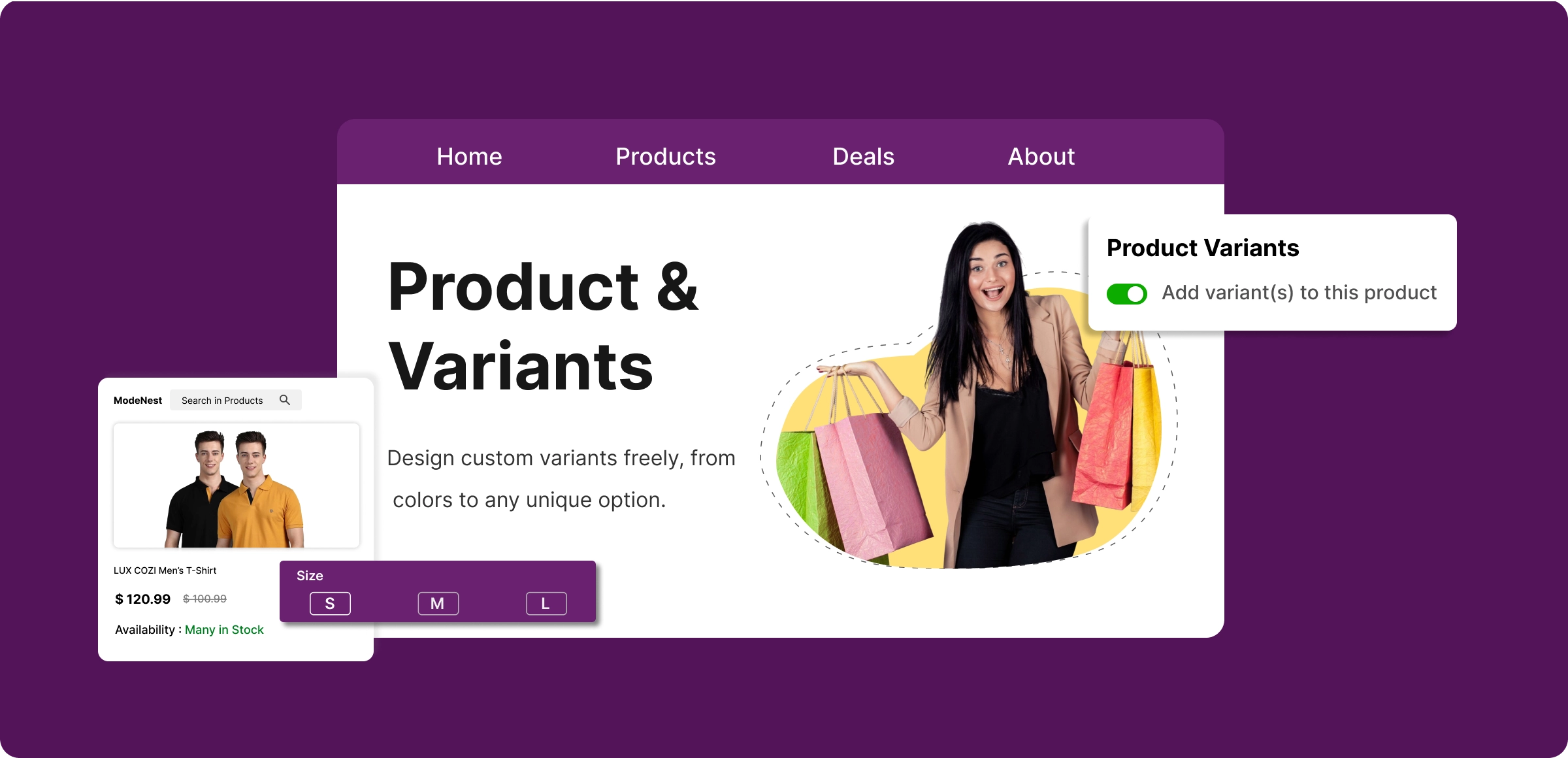
Steps to set up product variants
Setting up product variants in ZenBasket is quick, intuitive, and designed to save you time.
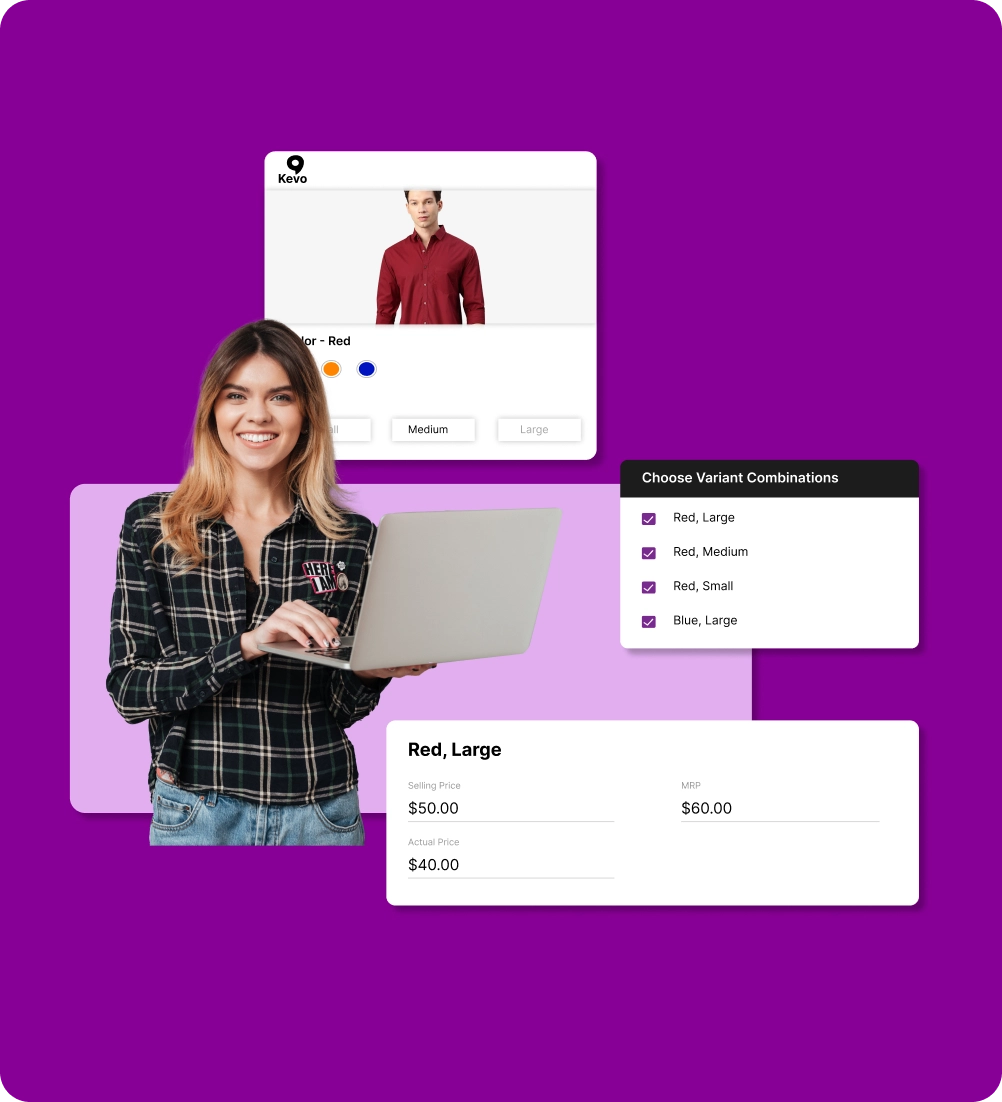
Define product variants
Create a product in ZenBasket admin, enter details, and define variants like size, color, or style for a better customer experience.
Set pricing, stock, and SKUs
Assign unique SKUs, set prices, and specify inventory for each variant to keep stock updated and prevent overselling.
Review and finalize settings
Double-check product details, variants, pricing, and stock to ensure accuracy before making the product live.
Publish your product
After setup, publish your product to display all variants like sizes or styles on an organized page for a better shopping experience.
Why stores lose out without
product variants
Selling online without variants choice and makes shopping harder for customers.
Cluttered product
pages
Listing each size or color separately clutters your store, hurting the shopping experience and making your brand look unorganized.

Customer
confusion
Without clear product variations, customers must browse multiple listings, causing confusion and frustration while trying to find what they want.

Higher store
management time
Manually managing dozens of individual product listings takes more time, effort, and focus, especially when updating prices or stock levels.

Manual store
management
If a shopper can’t easily see their preferred option, they’re likely to leave and buy from a competitor who offers a smoother experience.

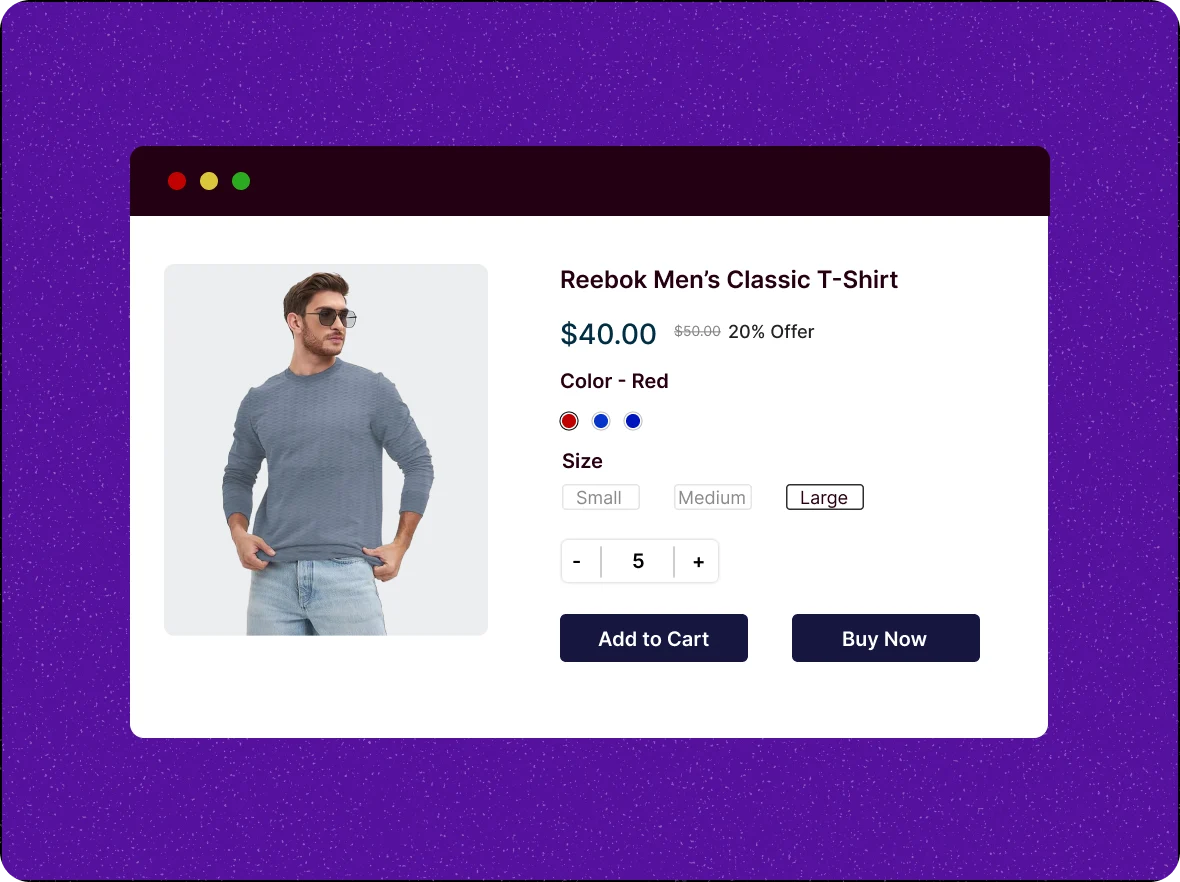
Offering flexible pricing
across product variants
Easily set different prices for each variation. Whether it’s a premium material, extra-large size, or custom print, you can adjust pricing to match the value.
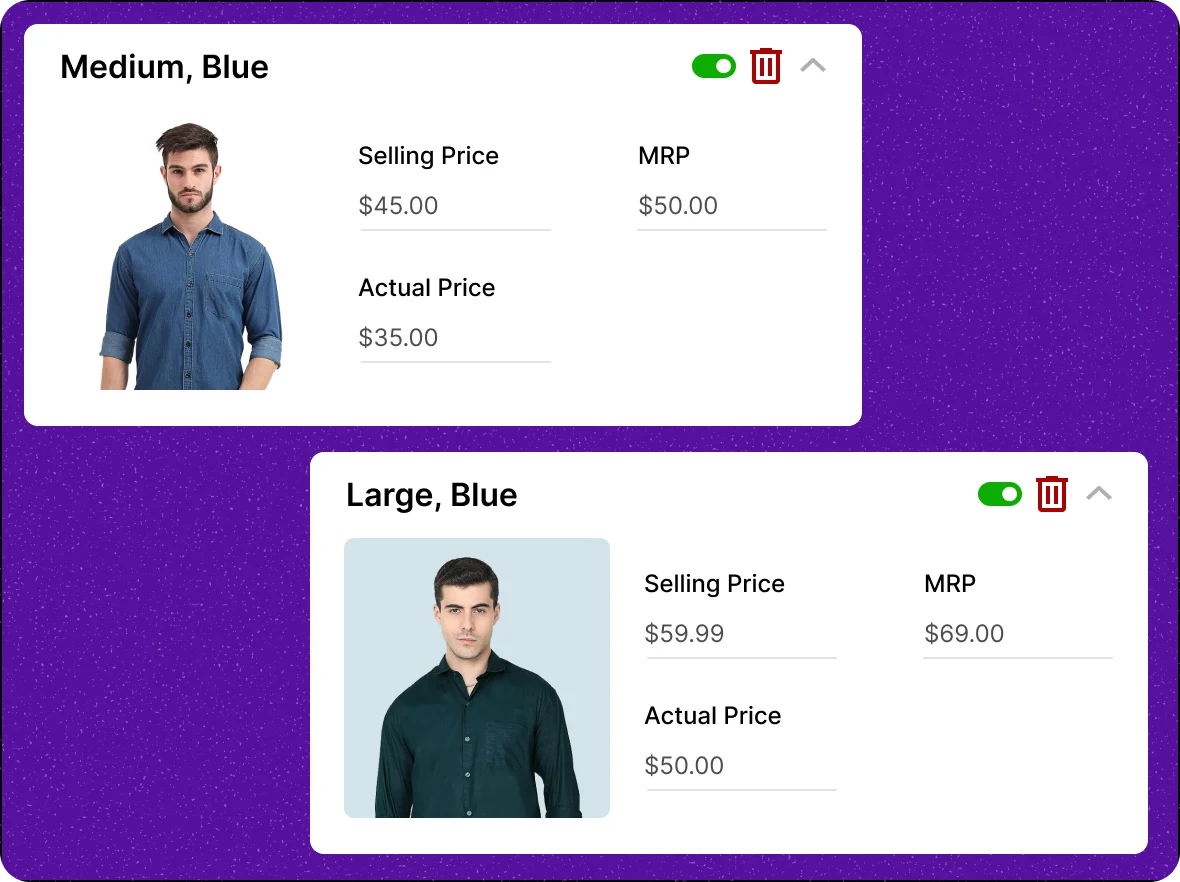
Inventory control by
variants
Maintain accurate stock levels for each product variant to avoid selling items that are out of stock and ensure customers always see real-time availability.
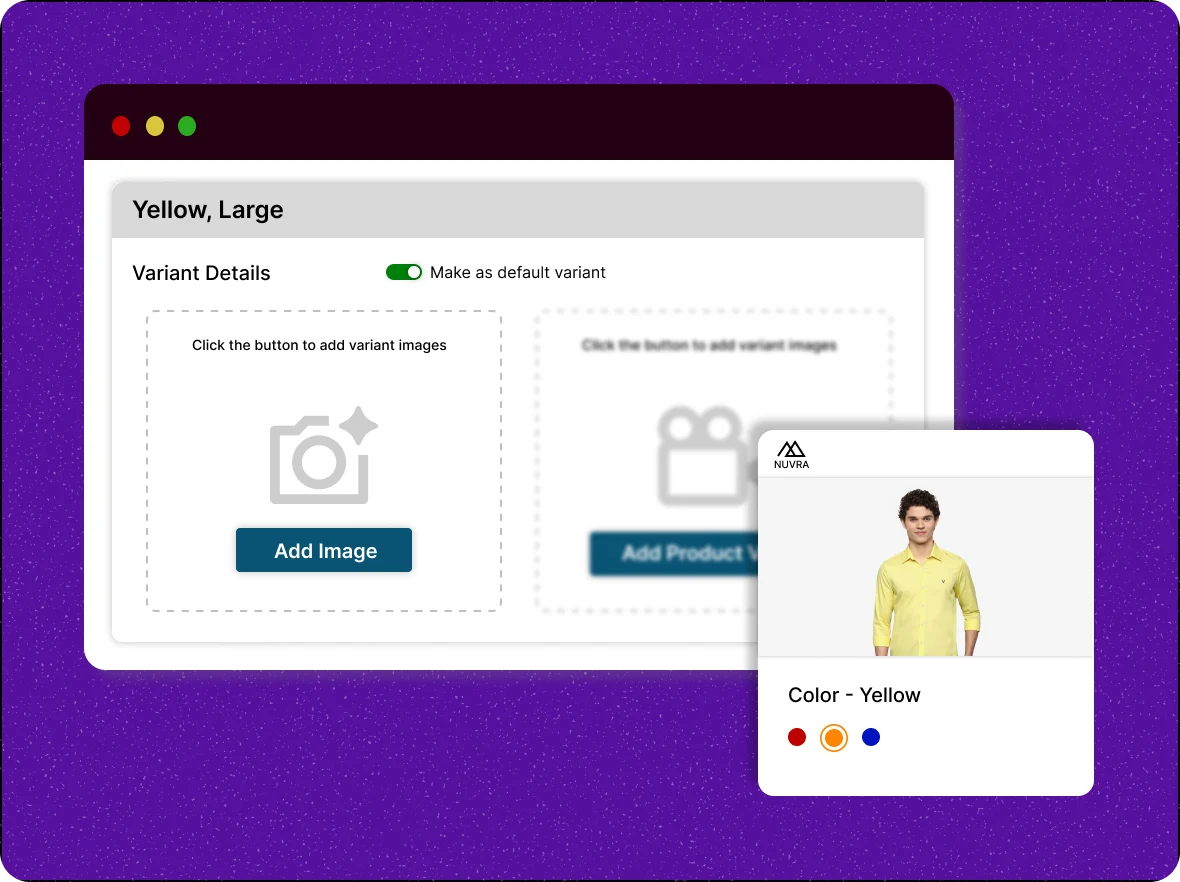
Improved image control
across Product Variants
Upload images that represent each specific product variant. These images will display automatically when customers select the variant.
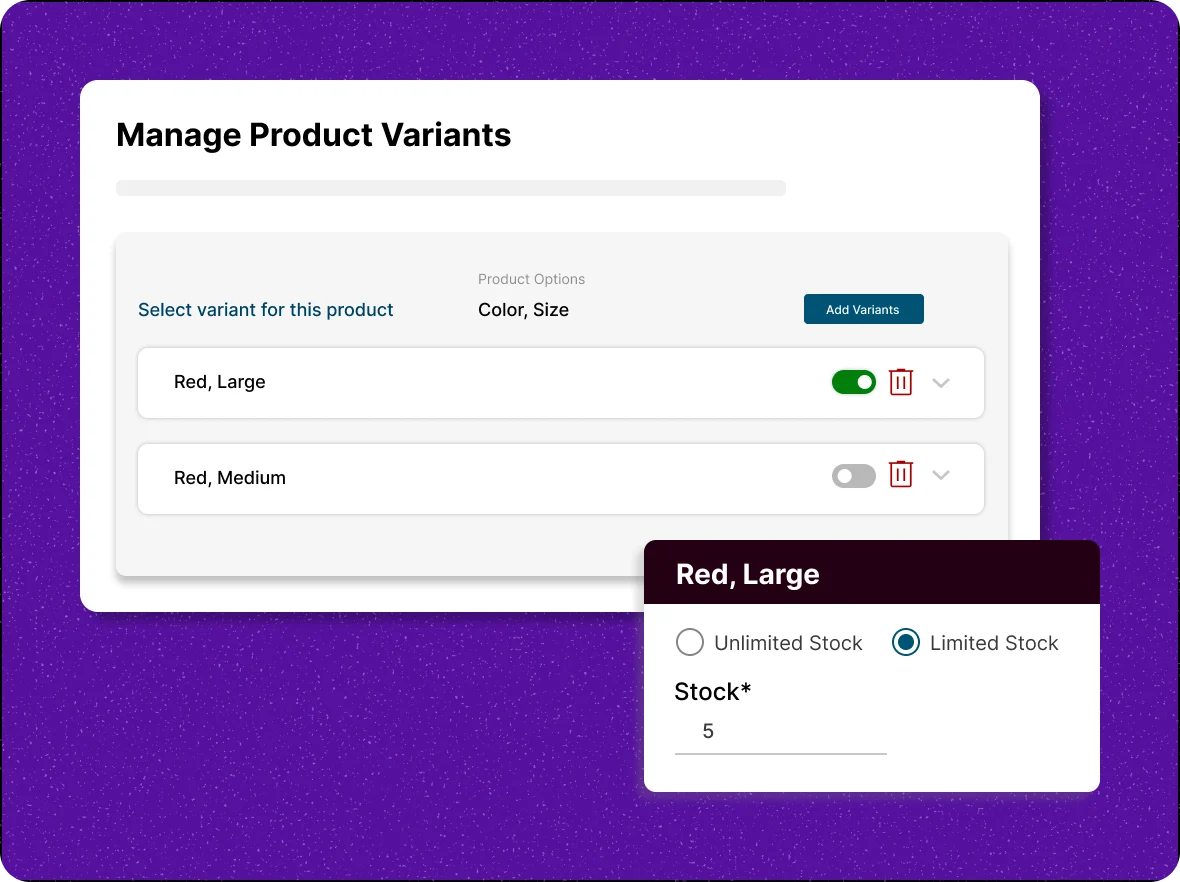
Better control over variant
availability
Set accurate stock levels or enable and disable specific variants to manage availability with precision. This ensures customers always see the correct options for purchase.
Why every online store
Product variants don’t just make your store look professional; they streamline management, improve efficiency, and attract more customers.

Better shopping
experience
Show all available sizes, colors, and styles on a single, well-organized product page, allowing customers to compare options instantly for faster and easier purchasing, which tends to reduce returns.

Organized storefront for easy
shopping
Keep related product variants under one listing to avoid duplicates and reduce catalog clutter. A well-organized store looks professional, helps customers find products faster, and makes your storefront easier to manage and navigate.

Efficient variant
management
Clear display of all options reduces confusion, lowers cart abandonment, and encourages more completed purchases, enhancing the overall shopping experience by making choices simple.
General FAQs
Get quick clarity on our product and common queries. Have more questions? Connect with our support team.
You can identify a gap in the fast and slow-moving variants that tend to maintain levels and reduce overstock of the products.
You can cluster the reviews and feedback of the particular variants and display them on the product page. It is better to see those variants that tend to place an order.
Yes, you can set the discounts for the specific variant that leads to an increase in your average order value, and you can gain revenue from it.
Yes, you can add the variants based on the product type, such as clothes(Size and Color), provisions (Litre, kilograms).
Yes, you can enable only the variants you want to show on your storefront and hide the rest from your customers’ view.
Learn, explore, and grow
with expert resources

Blog
Explore how ZenBasket product variants improve the customer journey with clearer choices and faster decisions, while also boosting efficiency and revenue.
Learn More >
Help Center
Learn how to add product variants in your ZenBasket store, so customers can easily select their preferred option from a single product listing.
Learn More >
Video Tutorial
Giving customers choices helps personalize their shopping experience. In this video, we’ll show you how to add product options and create variants.
Learn More >Let customers pick with product
variants
Create and manage product variants to offer flexibility and enhance your sales potential.