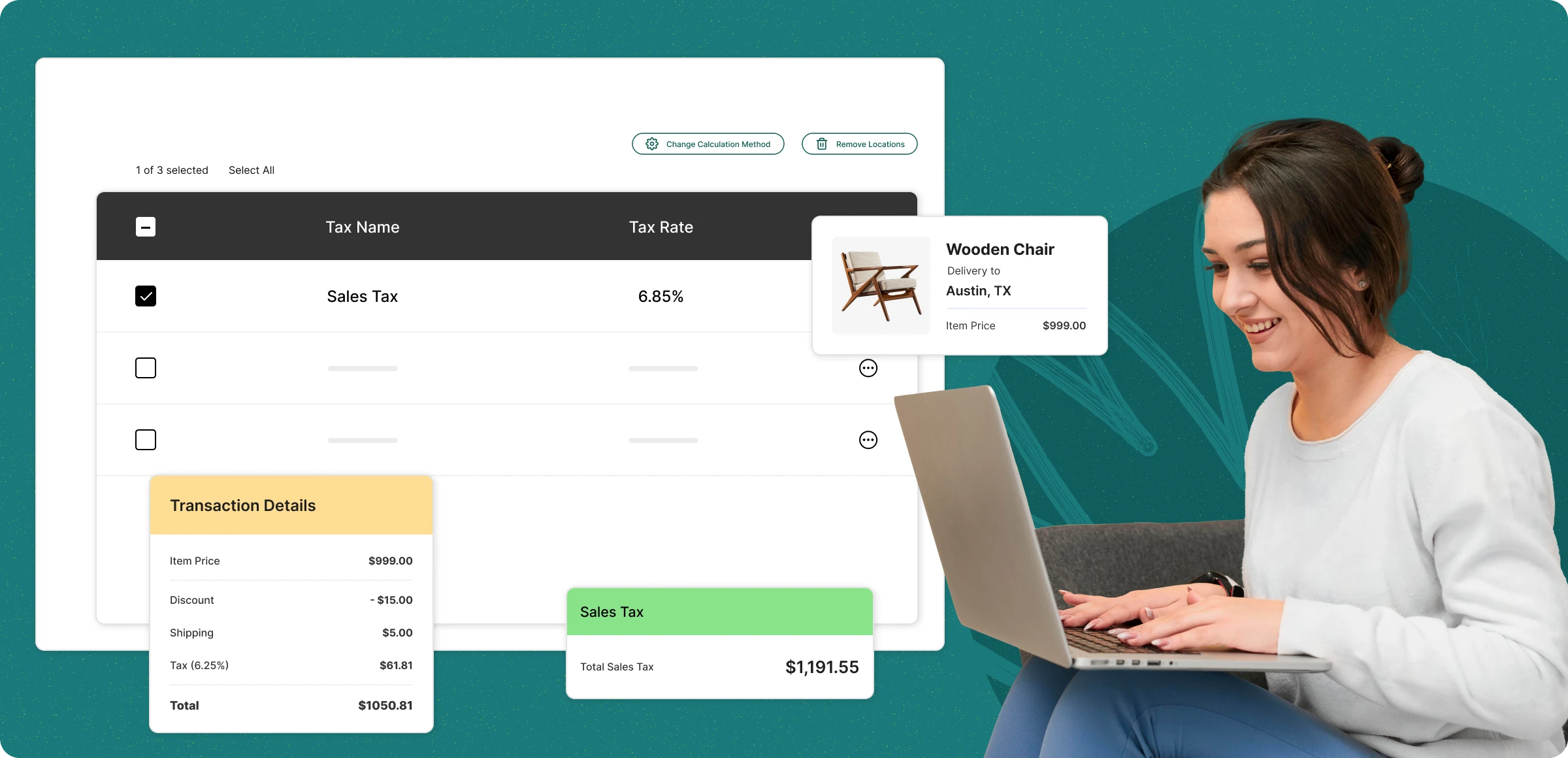
Set up taxes the right way
A well-structured tax setup keeps your business protected, your finances accurate, and your customers satisfied.
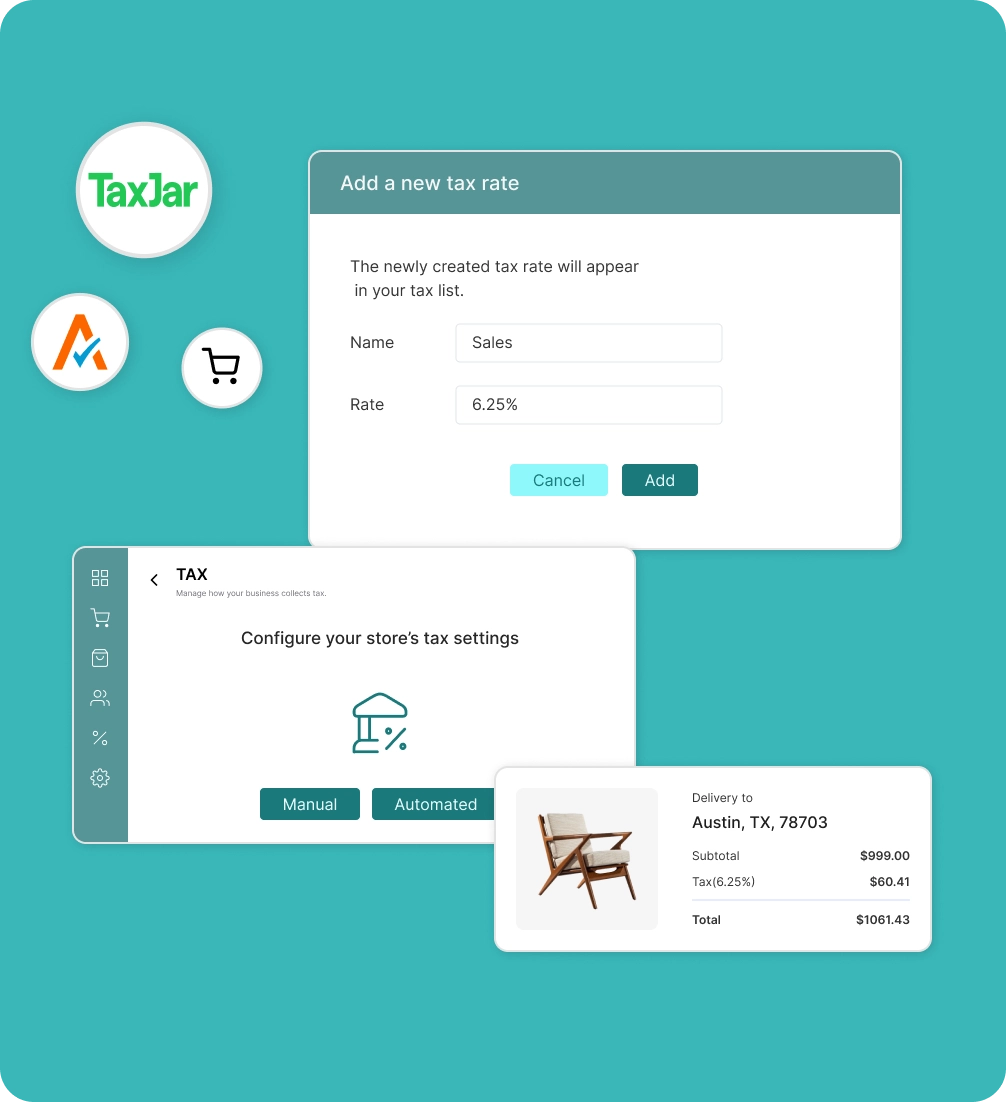
Choose manual or automated tax
Decide whether to configure taxes manually or integrate with Avalara or TaxJar for accurate, automated sales tax management.
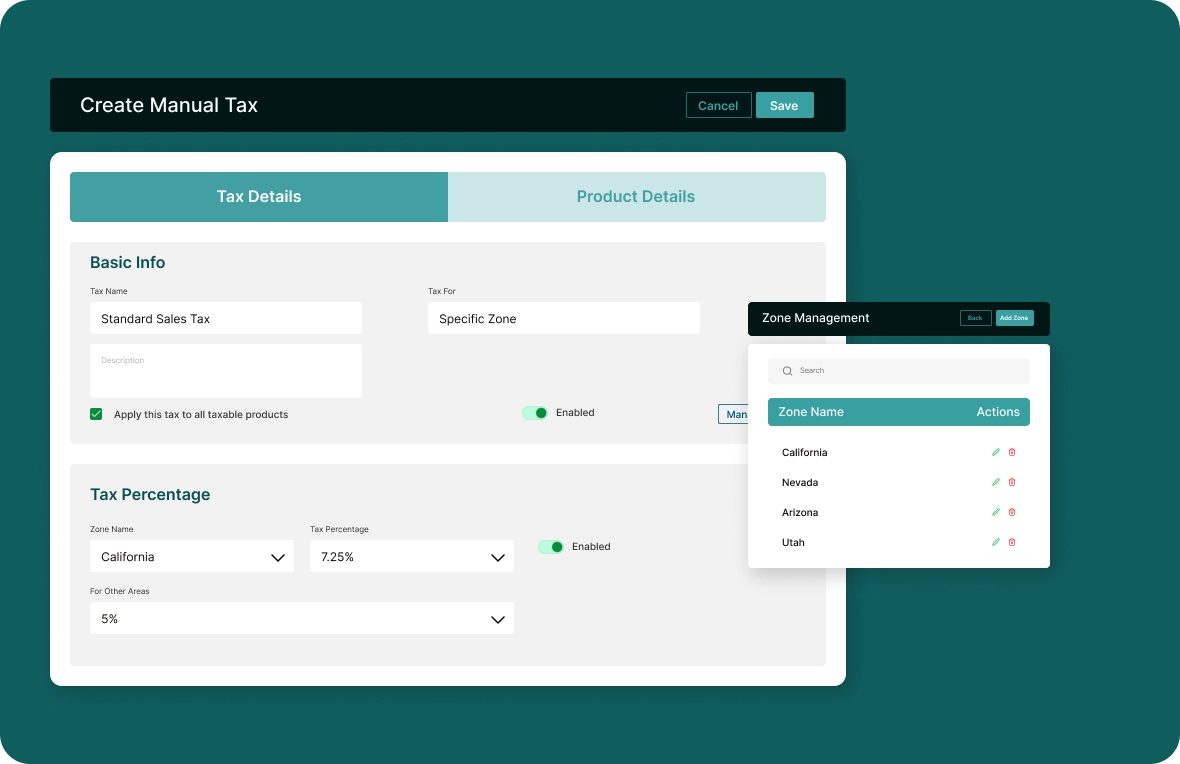
Set tax zones & rates manually
Add country, state, or postal code-based rules and define the percentage for each to region-specific, and compliant tax calculations.
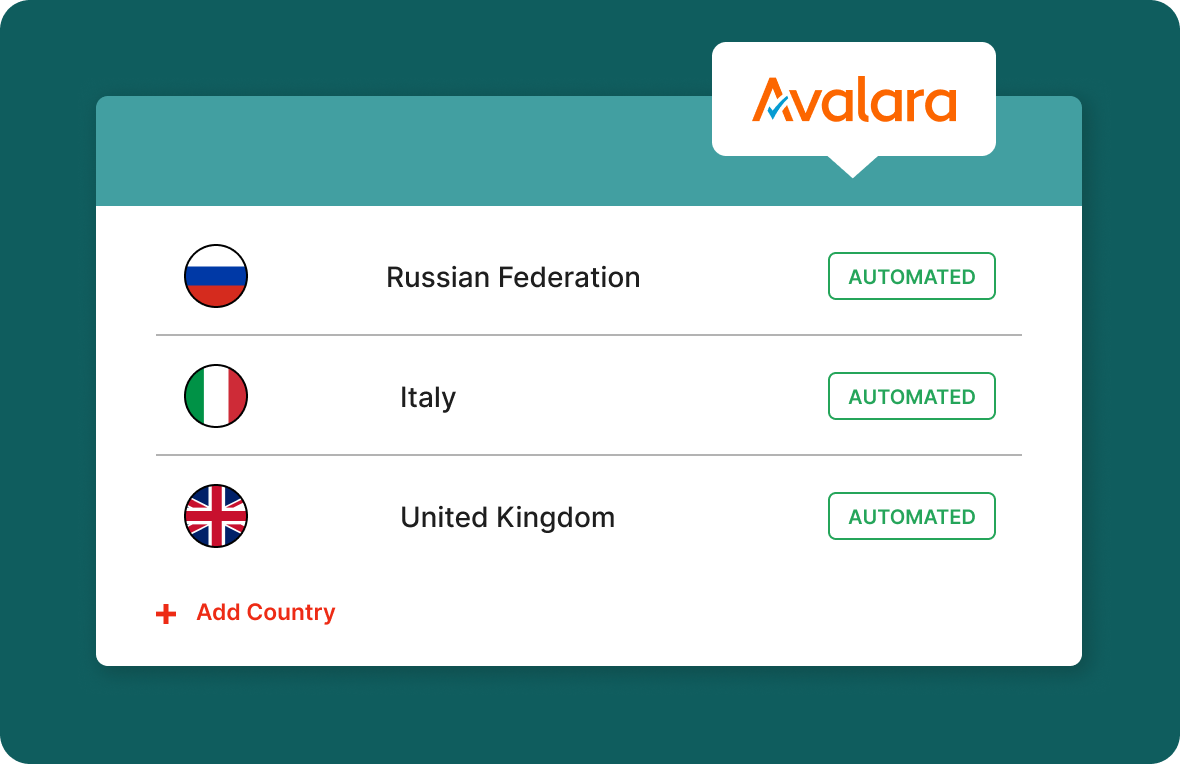
Easily integrate Avalara or TaxJar
Enable the integration in your ZenBasket admin panel and authenticate with your API credentials for automated tax calculations.
Test your checkout for accuracy
Test different checkout scenarios like zones and product categories. This helps catch errors early and ensures a smooth checkout.
Pitfalls in configuring store
taxes
Setting up taxes for your online store can be tricky and risky without proper guidance or automation. Here’s what to watch out for:
Complex tax rules by
region
With tax laws differing by region, country, manual setup becomes tedious and prone to errors.

Inaccurate tax
calculations
Incorrect tax amounts at checkout can lead to compliance issues and loss of customer trust.

Tax regulation
updates
Keeping up with ever-changing tax laws without automation can be overwhelming and risky.

Manual filing and
reporting
Without automation, filing taxes and generating region-specific tax reports becomes tedious.

Smart solutions for seamless tax management
Modern tools make tax compliance easier than ever. Discover smarter ways to manage taxes without the usual hassle.
Benefits of syncing
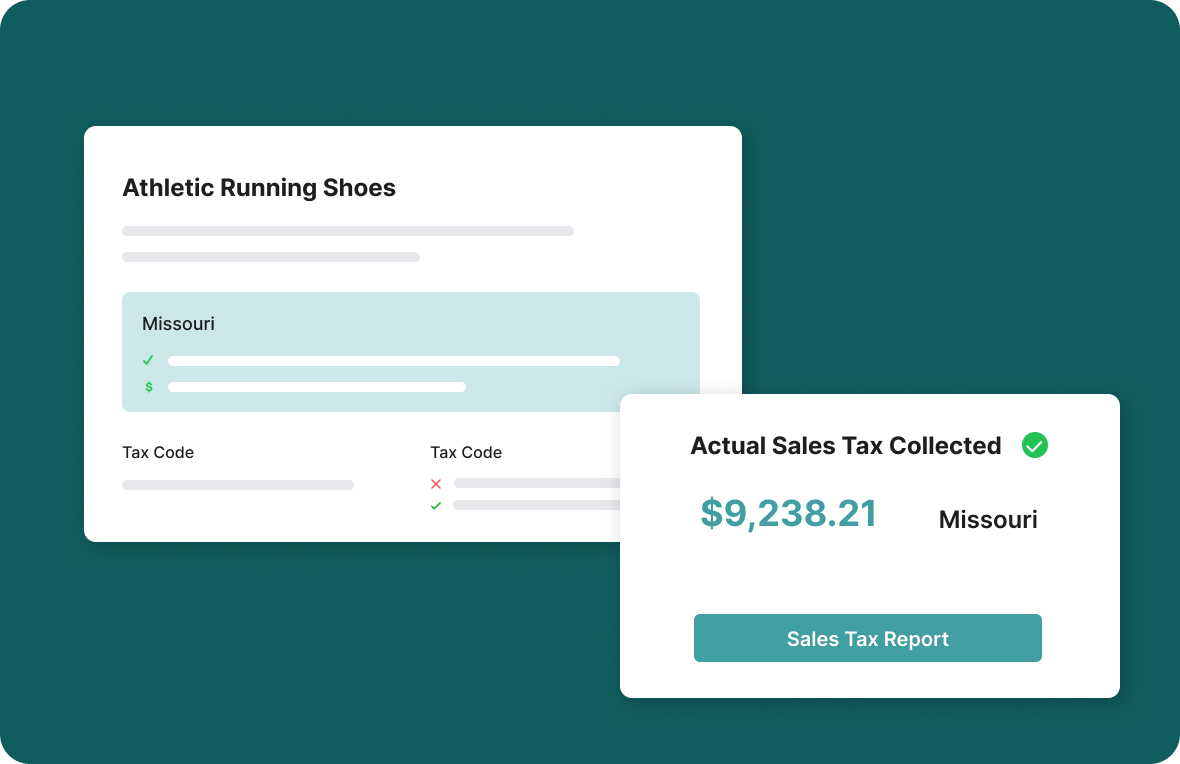
Keeping tax rules consistent across all locations. This avoids confusion, improves accuracy, and simplifies compliance.

Better checkout
experience
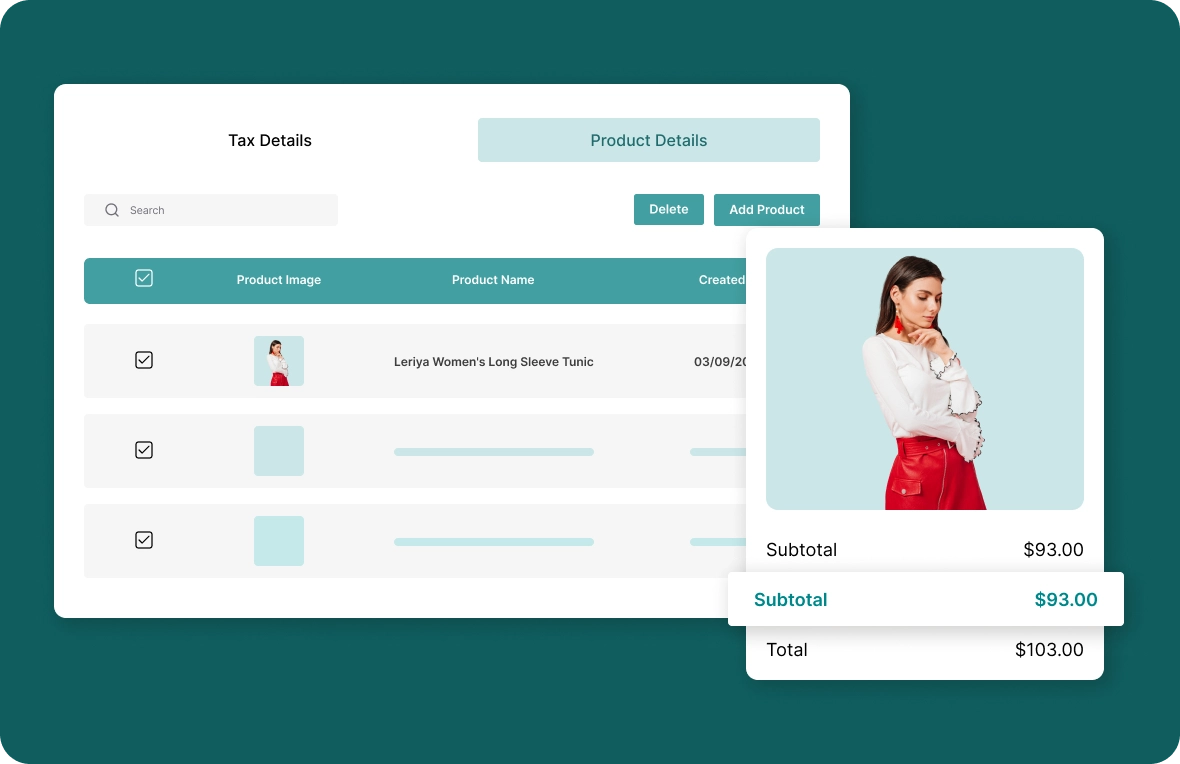
A seamless checkout isn’t just fast, it’s clear. Showing accurate, location-based tax builds customer confidence, reduces surprises, and encourages purchases, lowering abandoned cart rates.

Reduce errors, increase
trust
Manual tax entry often leads to mistakes that can cost you business. Automating and syncing tax rules across platforms ensures consistency and accuracy. Customers trust stores that get the details right, especially when it comes to money.

Simplified compliance and
reporting
Managing different tax jurisdictions can get messy. Syncing tax rules across channels simplifies the process and ensures compliance everywhere. It also makes filing and reporting more efficient at the end of each period.
Learn, explore, and grow with
expert resources

Blog
Running a store? ZenBasket makes tax management easy with automatic setup and calculation, ensuring accurate taxes based on your products and regions.
Learn More >
Help Center
ZenBasket allows you to set up taxes based on product type, location, or postal code. Easily manage region-specific tax rules with customizable settings.
Learn More >
Video Tutorial
Learn how to configure and manage taxes in your ZenBasket store. This video guides you through automating tax collection and ensuring regional compliance.
Learn More >General FAQs
Get quick clarity on our product and common queries. Have more questions? Connect with our support team.
Use Zone Management: define zones by location (country, state, zip), assign rates per zone for region-specific taxation.
Yes, ZenBasket allows you to set tax rules at the product level, so you can mark certain products as taxable or tax-exempt.
Yes—either via your manual tax setup or via integrating third-party plugins like TaxJar that auto-calculate based on buyer address.
Taxes are calculated in real time based on the customer’s shipping or billing address and the rules set for that zone.
Simply edit the product details in your admin panel and uncheck the “taxable” option. This will exclude it from tax calculations even if it’s in a taxable zone.
What’s next
Move forward with related pages that help you configure, customize,
and grow your store with ZenBasket


Error-free tax setup for
online stores
Keep your store compliant with configurable tax rates by zone, product type, or category.